Object outlines
Using Godot, how does one draw an outline around a mesh, for example to show which object is selected? Sounds a simple enough question?
Exploring the new Godot stencil buffer
Well, starting with Godot 4.5, there is a new functionality, which allows to use the stencil buffer. This is an offscreen texture that you can write into when rendering a mesh, and that can then be used to mask out something else later (either when rendering other meshes, or for fullscreen post-process effects).
It’s really simple to use! You want an outline? In your material, select the “ouline” stencil mode in the drop down…
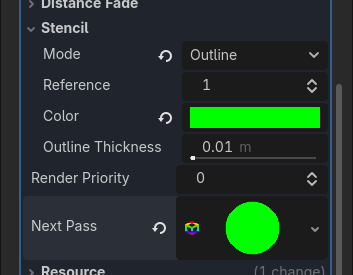
And here you go, you have a nice outline of your mesh (here we see the green outline around the sphere).
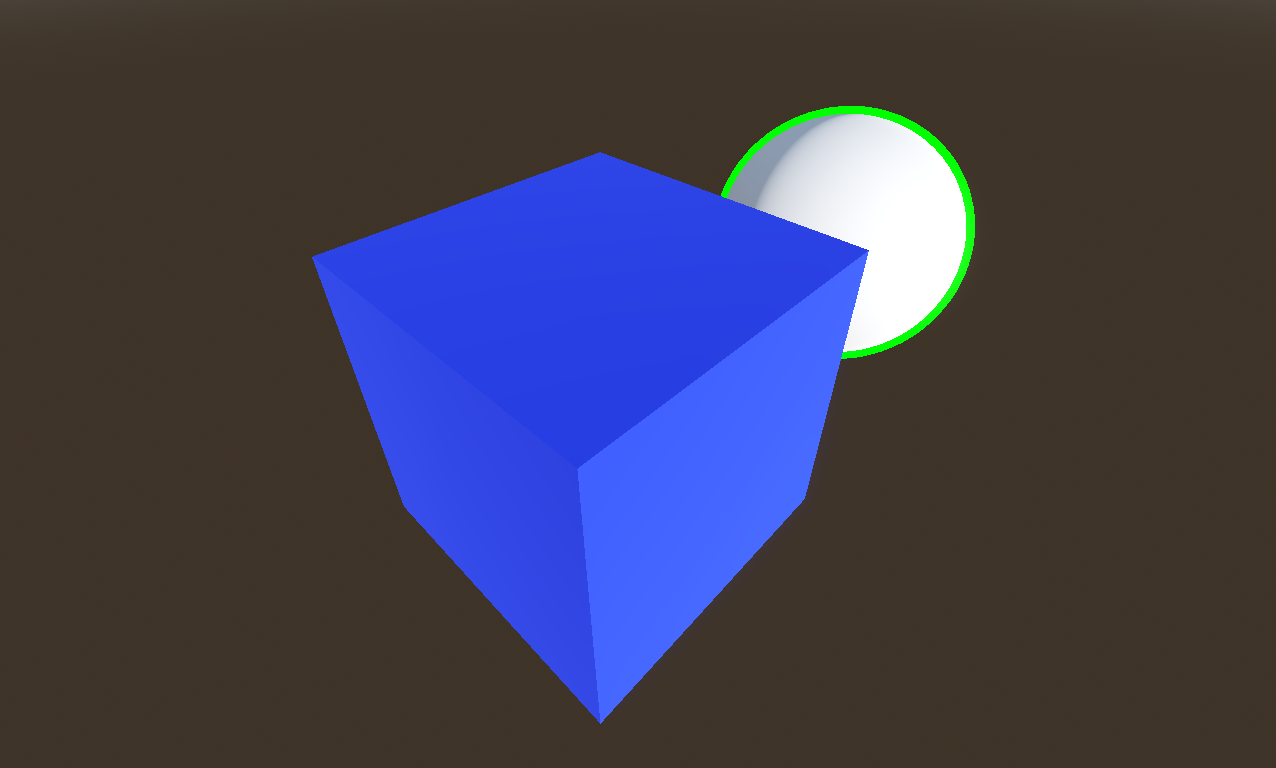
Excepted… it’s not what I want. And also, it doesn’t work for a lot of cases.
What I want is the player to see the selected object in all situations, even if it’s hidden behind something else, so I want an X-ray outline. There is a built-in X-ray stencil mode, but it doesn’t do what I want either. It will fill the hidden part of the object with a solid color (instead of just an outline). So I’ll have to use the “custom” mode, much more versatile, but you have to create your own material for drawing the outline in a second pass. Fair enough, let’s do that!
X-ray outline
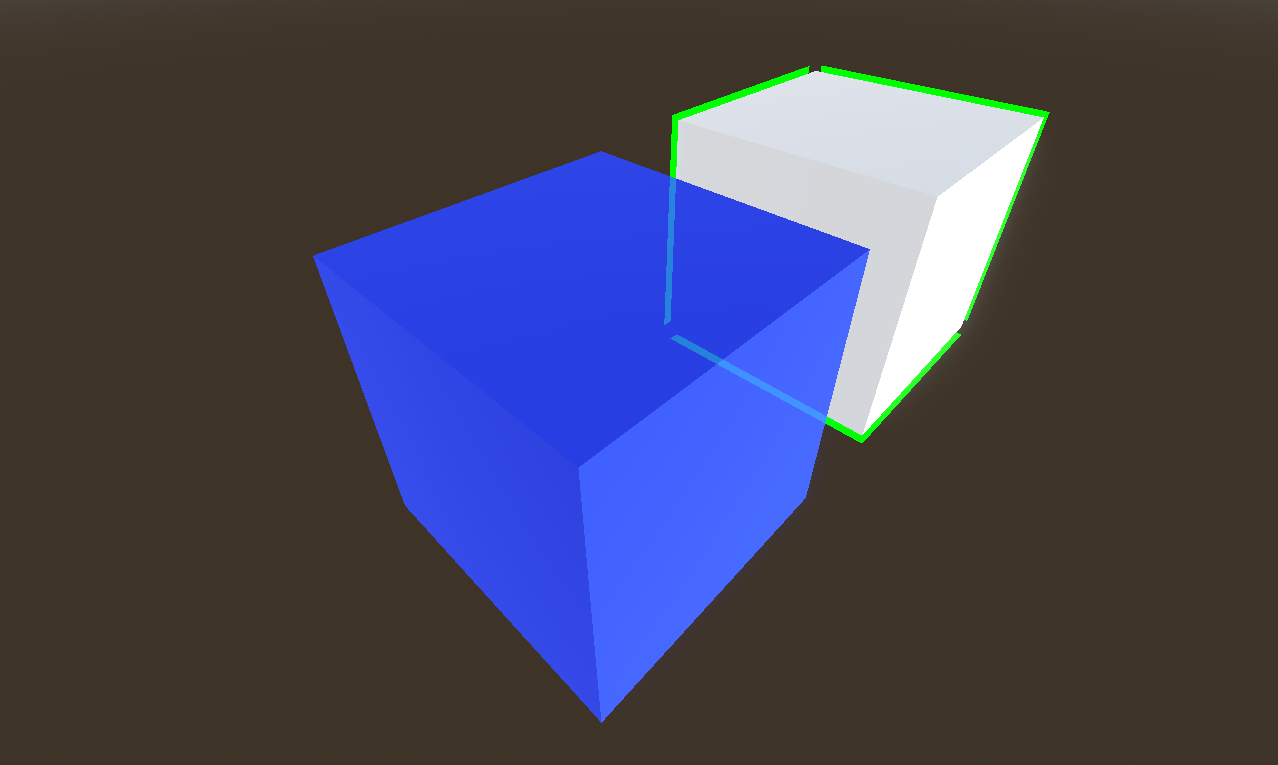
The idea for this second pass is to draw again the same mesh, with your desired outline color, but “grow” that mesh so that it extends around the original object, effectively drawing an outline. The inner part of this pass is masked by the stencil buffer, leaving only the outline visible. This is almost the same as just using the depth test, excepted for example a character having an arm in front of his body would get an outline around the arm if you use a depth test ; and also the depth test wouldn’t work at all for an X-ray outline. So here I use the stencil buffer to mask the inner part of the mesh when drawing the outline.
It’s still reasonably simple to configure, and you get a nice X-ray outline! It may not be completely obvious here, but the part of the outline we can see through the box is alpha blended, to make it a bit more clear it’s “behind”. Still have to tweak this.
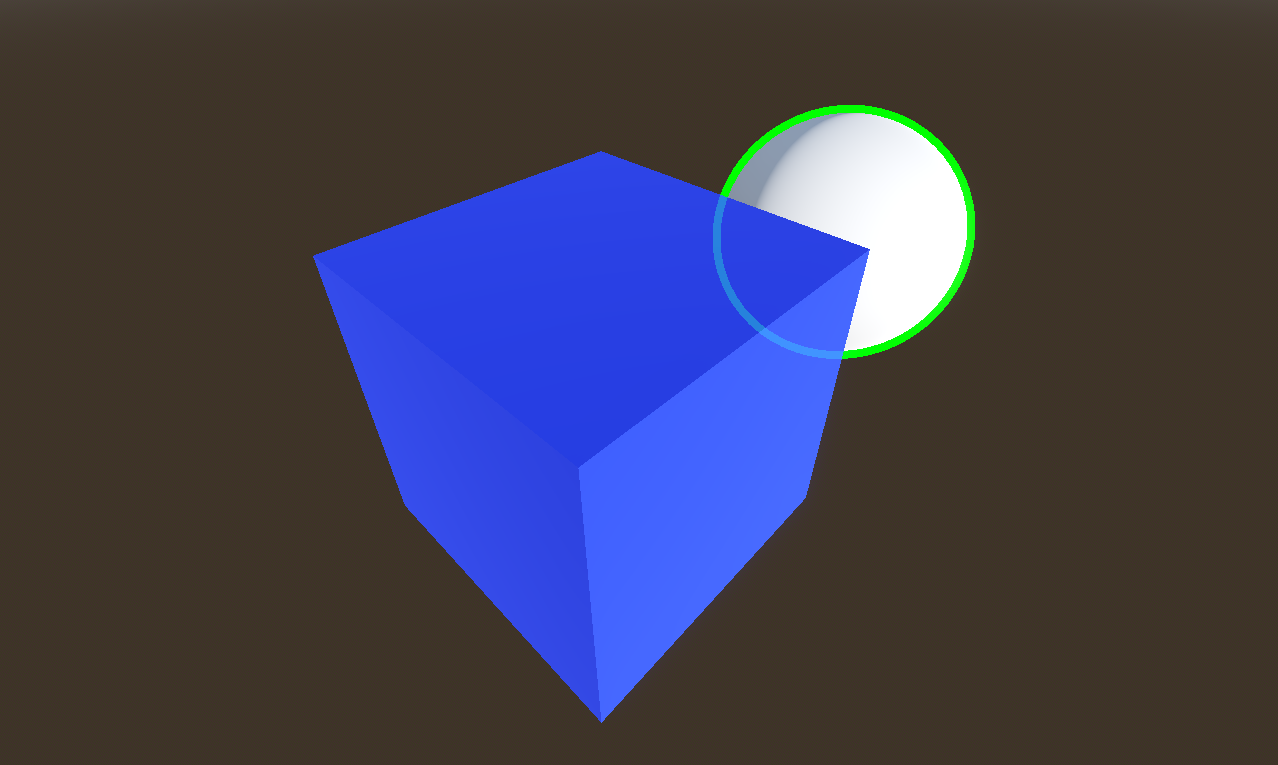
As far as I know, this is not fully documented yet, but to enable the stencil test in your shader, here is the syntax:
stencil_mode read, compare_not_equal, 1
Growing a mesh
But we’re not done yet. You may remember I said it doesn’t work in a lot of cases (and maybe you already know the limitations of this technique!). To grow the mesh, the idea is to move each vertex in the direction of its normal. This works great for “smooth normals”, like for our sphere. But if you do this for a mesh with “hard edges”, each face will move in a different direction, leaving a gap in the middle.
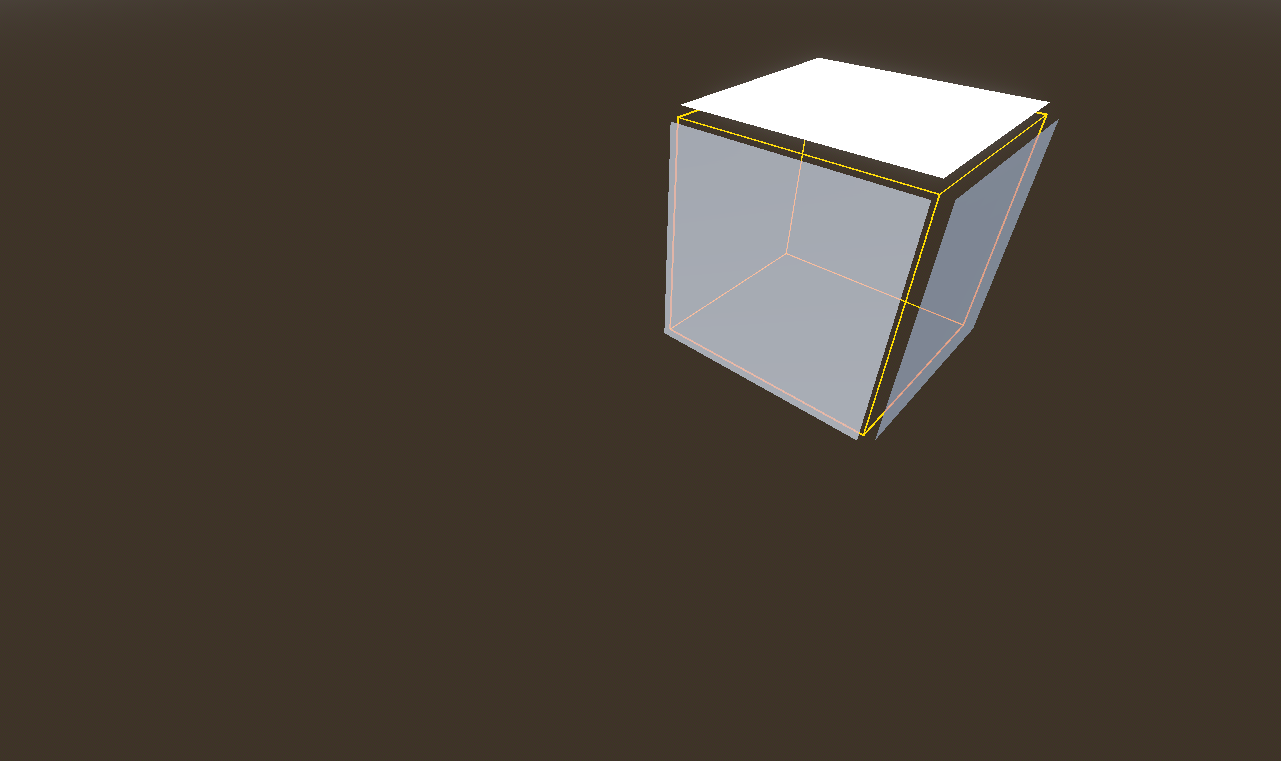
And, sure enough, this makes visible glitches on the outline. When looking at a grazing angle, you’ll even have whole edges missing their outlines.
In addition to this problem, using the built-in “grow” feature of Godot, while it allows to select the outline width, will make the outline look thinner as you move farther away, because of perspective. I’d prefer to specify the outline width in pixels. This is possible by using a custom vertex shader. But it still doesn’t solve the hard edge issues (and the similar issues that can happen with an mesh that is not closed).
There are several ways to fix this. One possibility would be to add two triangles for each hard edge. These triangles would have zero area and be invisible when drawing the mesh normally, but would expand to fill the gap when the mesh is grown. That wouldn’t fix the issue that the outline would look irregularly thinner depending on the view angle though. Also, this would add a significant amount of triangles, and this overhead would apply all the time, even when you don’t display an outline (the cost remains small since degenenerate triangles are not rasterized, but the mesh takes a more memory).
Another approach would be to add a channel on the vertex array to store the smooth normals, only used in the outline vertex shader, to grow the mesh. Probably less overhead, but still a cost on mesh size (I think it could be packed in 16 bits per vertex).
Another way is to generate a different mesh to draw the outline, which will have smooth normals (this could be made automatic, either in editor or at runtime). And I think that will be my preferred option. This mesh is only used for the outline, so when the object is rendered without outline there is no overhead.
An alternative: screen-space edge detection
I haven’t explored a completely alternative route, which is to use a mask, and process it as an image in screen space, with an edge detection algorithm, to render the outline. This allows more subtle effects, such as a blurred outline, and could avoid to render the mesh twice (though not really due to Godot limitations), and would avoid all the issues with hard edges. But a full-screen post-process also comes with a cost. And an additional limitation is that you couldn’t display a different color when the outline is behind another object.
Beside, it is actually quite difficult to implement this in Godot in an efficitent way. The reasons are that there is no MRT support (multi render target), and, more importantly, you can’t specify a custom format for your render targets (as far as I know, they are all 32bits, and I’m not even sure you can avoid allocating another depth buffer). The only way, as far as I know, is to add a secondary viewport, and render your base objects here (so, yes, you still need to render the mesh twice), and then use the resulting texture in the post-process shader in the main viewport. Still, it would certainly work!
Conclusion
What I learned while researching this outline subject, is that there is no perfect solution, you’ll have to choose your tradeoffs. And also, things that might look like long-solved problems are not always so simple to integrate.